Firmware and backup
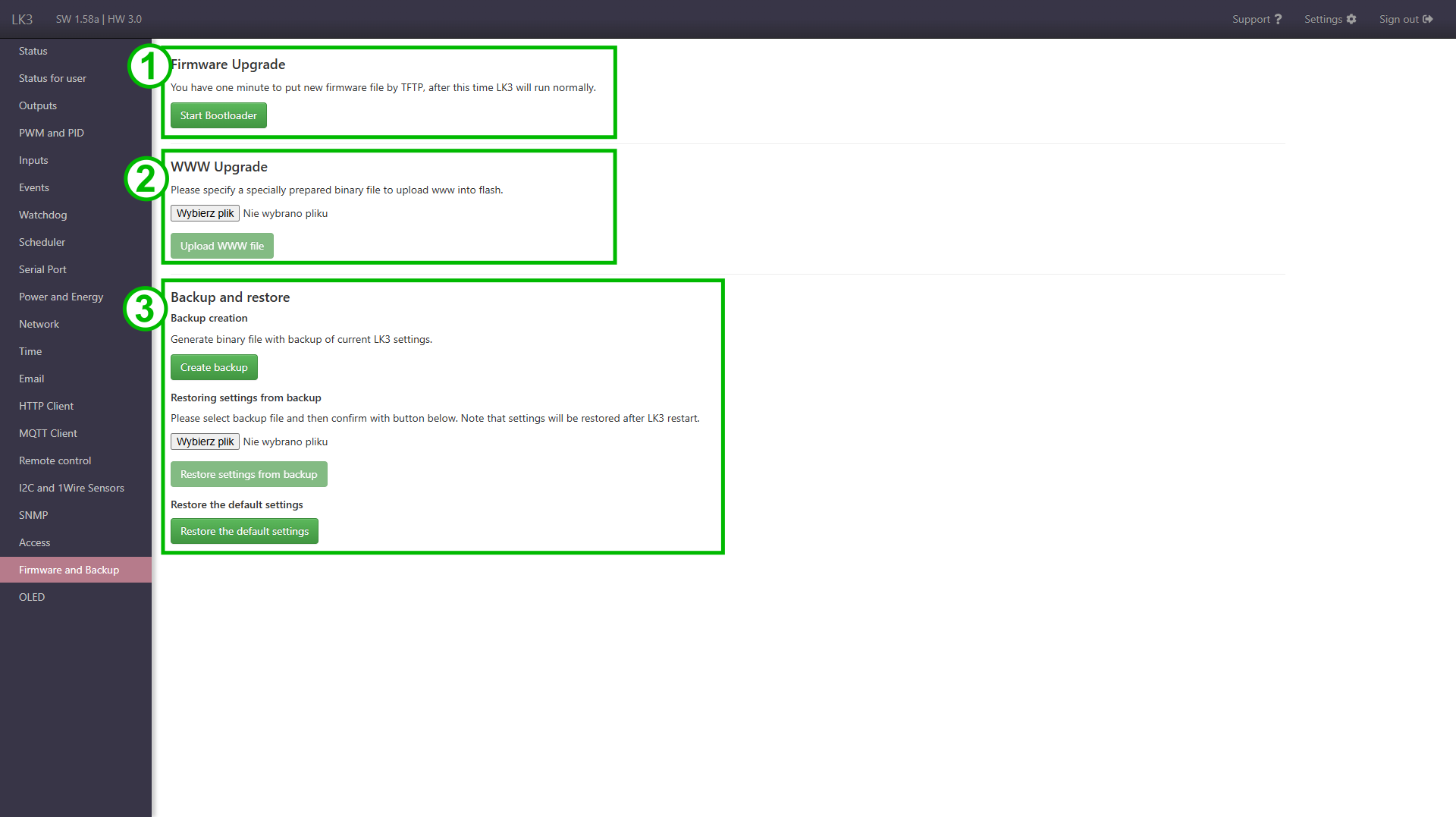
Elements of page
- Firmware upgrade section.
- WWW upgrade section (updating/changing the web interface).
- Backup and restore section (settings backup and uploading them to the device).
Firmware upgrade
Starting bootloader
The Start Bootloader button is used to change the Lan Controller into the bootloader mode. In this mode, the device starts the TFTP server and waits for a file sent from the TFTP client (eg TFTPD32 or LKTools program). After pressing the button, the device remains in the firmware upload mode for one minute and then returns to normal operation.
An alternative way to switch to bootloader mode
The method can be useful when there is no access to the Lan Controller webpage.
With LK power off, short the pins service jumper pins (see the short LK manual) and then connect the power supply.
As a result, Lan Controller will start in bootloader mode and will wait for the file. Remember to remove the jumper from the pins after uploading the firmware (if it was used), otherwise LK will remain in the bootloader mode.
Updating with LKTools
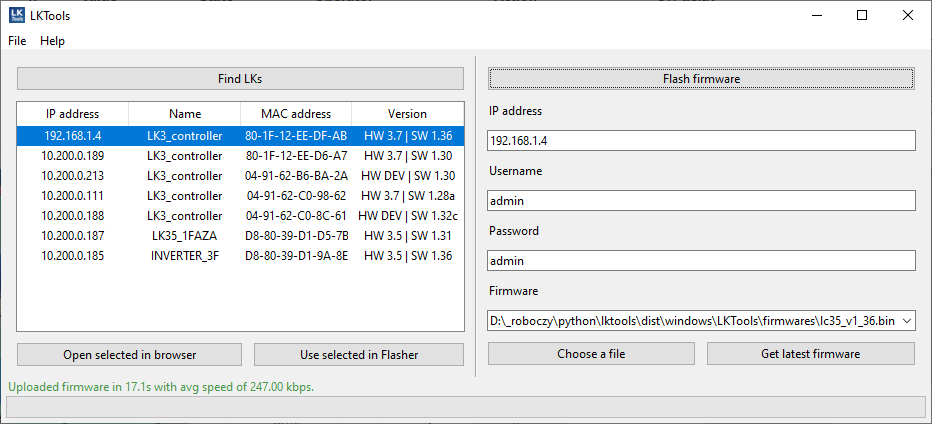
- Download the program LKTools from the website https://tinycontrol.pl/lktools/.
- Run the downloaded program.
-
Complete the flashing form on the right.
- In the IP address field, enter the IP address of the LK.
- The Username and Password fields can be omitted if the device does not have Basic Authentication enabled or is already in bootloader mode.
-
Select the downloaded firmware file in the Firmware field. You can use the Get latest firmware function to download the latest stable firmware available at tinycontrol.pl.
Firmware files are available for download:
-
Start the firmware upload by clicking the Flash firmware button. The program will try to switch the LK into bootloader mode and then upload the firmware using the TFTP protocol. As a result, uploading should work for LK in normal mode as well as for LK already put into bootloader mode using a jumper.
- After completion or in case of problems with uploading the firmware, an appropriate message will be displayed in the program.
Updating with Tftpd32 or Tftpd64 (Windows)
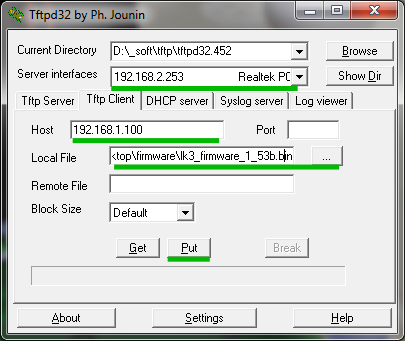
- Download the new firmware file from:
- Download the program Tftpd32 or Tftpd64 from the page http://tftpd32.jounin.net/tftpd32_download.html.
- Run the downloaded program and prepare it for uploading (like in the picture above).
- Select the network interface (Server interfaces) to which the Lan Controller is connected.
- Select the tab Tftp Client.
- Enter the LK IP address in the Host field.
- In the Local File field, enter the path to the downloaded firmware file (the button next to the field allows you to indicate it).
- Switch Lan Controller into bootloader mode using the Start Bootloader button mentioned above.
- Start uploading the firmware by clicking the Put button in the program.
- Progress in loading the file and message about successful completion inform about the finish of update. After restarting the Lan Controller is ready for operation.
Backup
The backup can be useful for saving settings in the event of a failure or firmware upgrade.
Another situation when the backup function can be helpful is to configure a larger amount of LK in a similar way. It is enough to configure one device, save a copy and then upload it to other devices, optionally making any changes to the settings.
There is also a function to restore the default settings of the device.
WWW Upgrade
Lan Controller 3.0 allows you to modify or even create a new web interface. The www generator is used for this purpose (you can download it from our website). Information useful for building your own interface can be found in the HTTP API and JSON/XML responses sections.
Uploading is done via the website of the device, where the file to be uploaded is selected first (generated .bin file), then clicks the button Upload WWW file and follows the instructions on the page. After successfully uploading the file and after reloading the browser window, a modified interface should appear.